Excel Importing Guide
The instructions below will help you make sure your Excel file is formatted correctly to be imported as a TaticView datasource.
You can download a sample file here: Sales.xlsx
If you still have problems importing, try Importing Problems.
Headers
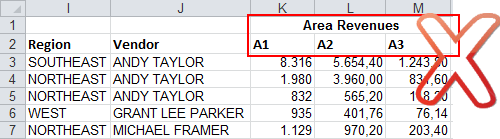
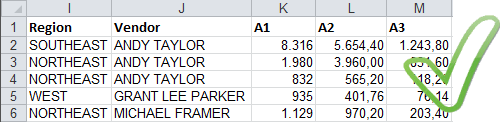
Headers are not mandatory, but if present they should be contained in just one row (the first one) and not be in merged cells.
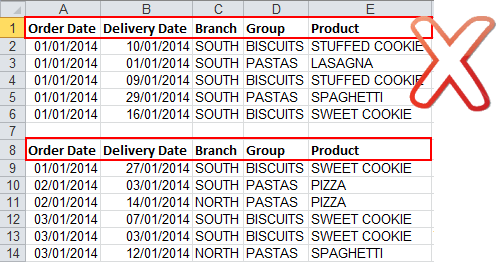
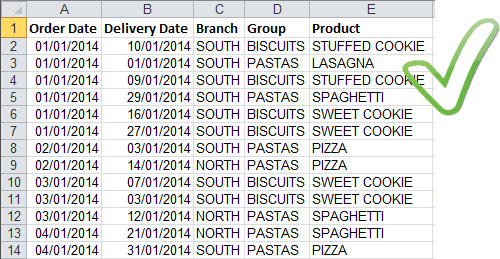
Avoid Multiple Data Tables
Only one table by spreadsheet can be imported. If the data in two different tables can not be joined, they must be imported as two separated datasources.
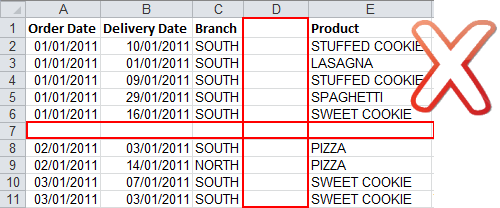
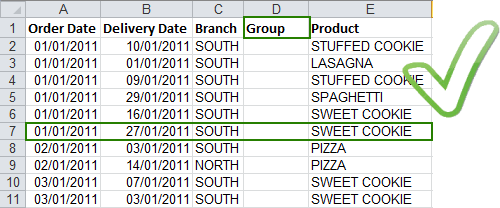
Fix/Remove Empty Rows/Columns
Remove or Fix (by adding at least a header) to full empty rows and columns.
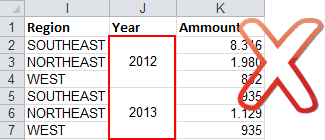
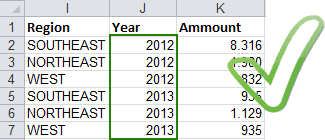
Remove Merged Cells
Data should not contain merged cells for repeated values. All cells must be unmerged and values must be repeated for each cell.
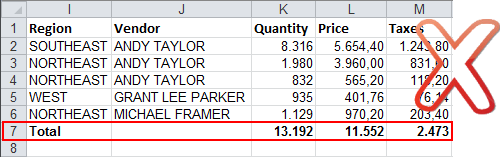
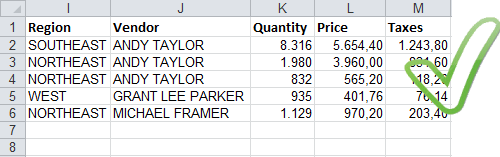
Remove Aggregate Rows
Files should not contain aggregation rows cells for repeated values. Delete that rows, as TaticView will make all necessary aggregations in run-time.
Remove All Table External Items
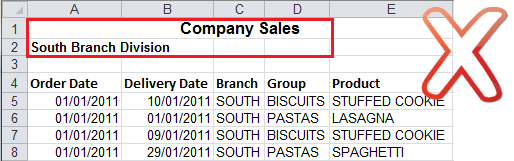
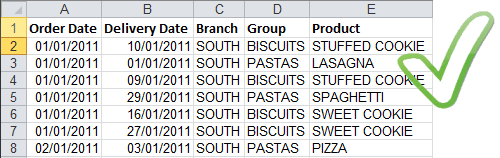
Files should only contain the data table to be imported. All non-related data, as main headers, images, charts, must be removed prior to importing.
Check for Invalid Numeric Data
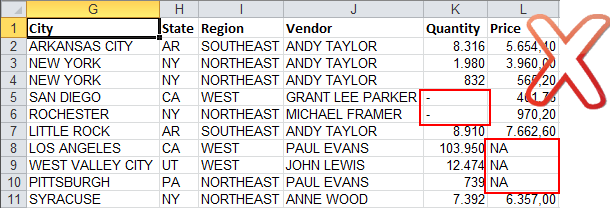
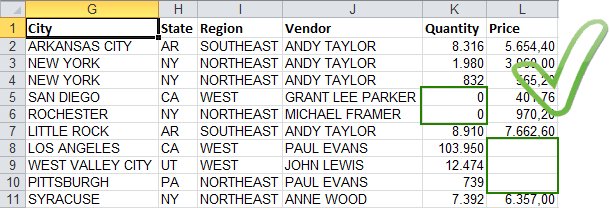
Numeric columns should be formatted in Excel prior to uploading the file. This can be done by using the “Convert to number” feature in Excel for all numeric fields. Value data fields can not contain text or symbols, as they cannot be aggregated. When data is not available, cells may be left blank or as zero (0).
Normalize your Data
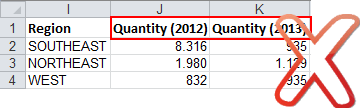
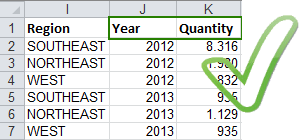
Normalization of data (where column headers can be converted into attribute values) will result in better analysis. To do this, first convert metric names to represent attribute values, and then consolidate all metric columns into a single column of data.
Check the order of the worksheet
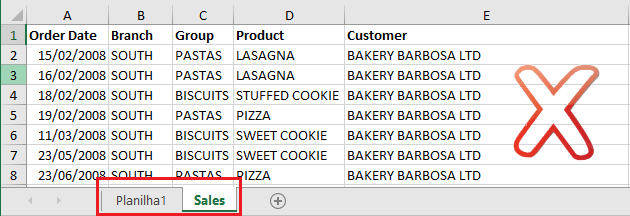
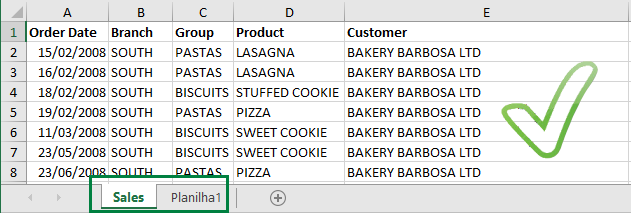
If the file (XLS or XLSX) has more than one worksheet (tab), make sure that the worksheet to be imported is the first one in the file. TaticView considers only the first worksheet (tab) of the file, ignoring the others. In the example below, we show how the order of the worksheets should be, so that we can import the Sales worksheet.